BreakoutEDU, Desmos, Digital Escape Rooms, technology, Wakelet

Wakelet and Spaces

If you didn’t know, I am a HUGE fan of Wakelet. See, I was at the very beginning of the Pinterest craze all those years ago because I LOVED the visual aspect of storing my bookmarks. Wakelet hits the visual aspect for me too but it’s easier to share with others and it can be COLLABORATIVE.

Chrome extension

I love the Chrome Extension for Wakelet. If I’m on a website, I can click the W in my extensions bar and it will open a save to Wakelet window! So easy, just like the save to Pinterest button that I love so much!!!

Twitter

I love when I’m on my desktop version of Twitter (and the Chrome extension is enabled) that I can hit the W and save a tweet. When I’m on my phone, I hit the up arrow and save to Wakelet. Also sooooo easy!!!

Wakelets can be public. If you click on this link, it will take you to all my public Wakelets.

BUT, you can also may them private! This is perfect for student work. The private links are sharable, and only the people you share them with will see them. It’s a great way to share student work with the class and their families.

Wakelets can also be collaborative. You can assign each student a topic and they can add to a shared classroom Wakelet that is private to everyone except your class.
Spaces

This week, Wakelet released a new feature called Spaces. Basically, it’s a Wakelet full of Wakelets. Why would you need this you ask? Well, here are a few examples I have created just this week.

Digital Escape Rooms – I had 3 different Digital Escape Room Wakelets on my site. One was the escape rooms I have made, another was resources to create your own, and a third was escape rooms others had made. I had to share all three of them when I talked about escape rooms. NOW, I can just share the space will all my Wakelets inside.

Desmos Resources – We are always finding Desmos resources. I was just saving them to a Wakelet called Awesome Math Ideas. A few colleagues of mine ALSO have Desmos ideas saved. To make the process better, I made a Desmos Space and we have our 4 content areas in it. It’s now collaborative so we can all add what we find. This is going to be WONDERFUL!

So what can YOU do with Wakelet Spaces? I’m so glad you asked. Here are a few ideas, in addition to what I’ve shared above.

  • Classroom Portfolios – Each student would have their OWN Wakelet that you can share with parents and guardians but you can keep all of your students in a Space to keep them organized.
  • Resources – You could create resource folders for parents, students, or colleagues (like my example above)
  • Newsletters – Create a Wakelet for each newsletter and store them in a Space so parents, students, etc. would have access to previous newsletters.
  • Gallery of Student work – I plan to use this idea SOON. My students create ALL THE TIME. I share some of their work on my blog, but using Wakelet, I can share ALL student work. I plan to create a Space to keep all the work I share by class. I can’t WAIT to get this one started.

What will you do with Wakelet spaces? Tag @Wakelet and @MandiTolenEDU on Twitter if you use Spaces in your classroom. I would love to learn some new ideas from you!!!
Google Slides, Tutorial, Virtual Learning

Digital FlipBook

A combination of events led to the creation of this digital flip book.

Event 1: Our school ended up with “air quality” issues due to “spores” created from flooding in the school and hot air. Because of this, everything porous is our rooms were thrown in the dumpster. This is 20 years of books, memories, and saved projects, including examples of foldables I do every year. We will be teaching remotely until our building is clean and safe to be in.

Event 2: Covid! When we do return in person, we need to reduce contact with papers. The foldables that I usually make will need to be digital to cut down on paper contact.

Event 3: I saw this digital foldable idea on TikTok from @adungan. I knew this was the solution I’d been looking for.

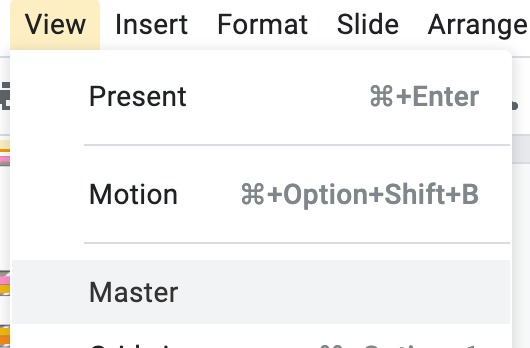
I created a template to make a five topic foldable. You could easily adapt it to more or less. You can go to View-Master and change the tab names, colors, and adjust the number of tabs.

You can create you own if you want to start from scratch.

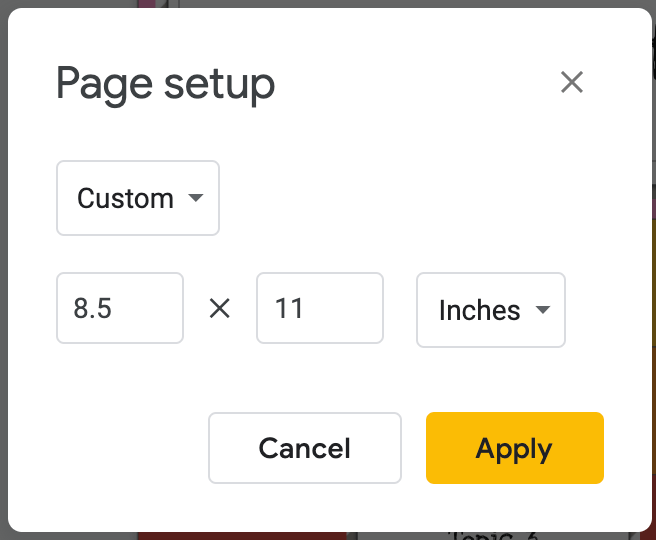
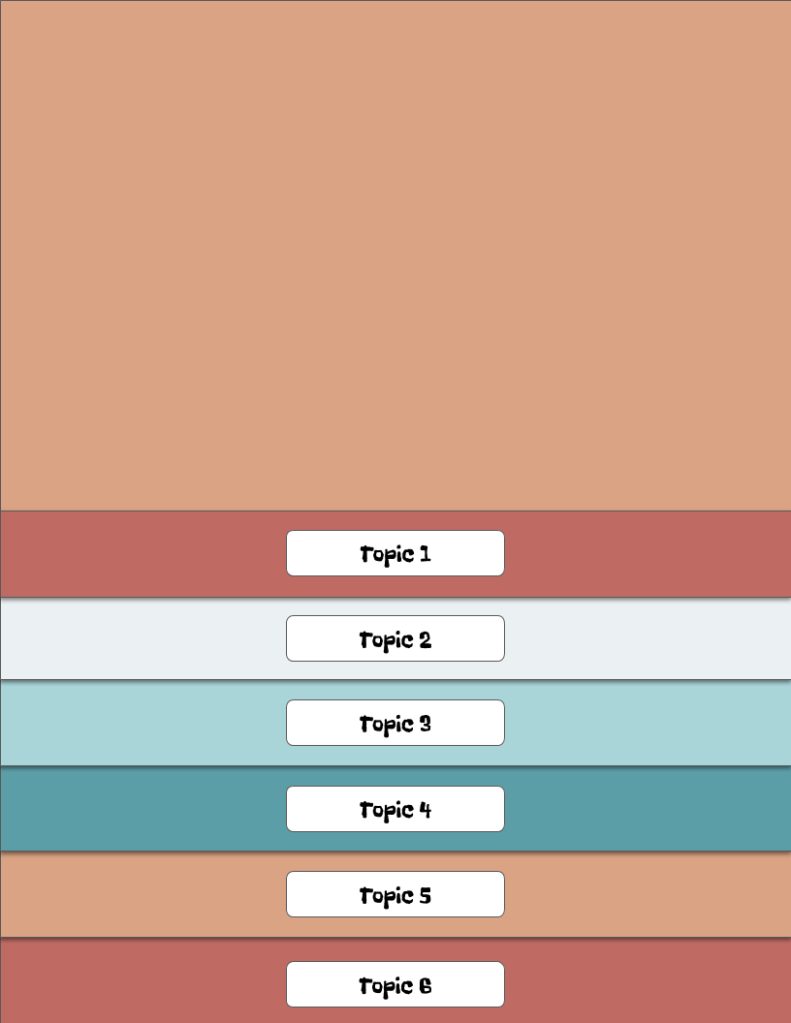
  1. Open a new blank Google Slide and go to File-Page Setup. Set the page set-up to 8.5 x 11.

2. Determine how many tabs you want. Let’s make one with 6 tabs this time.

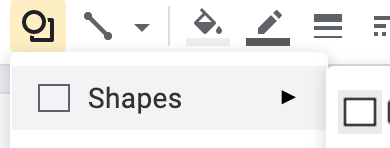
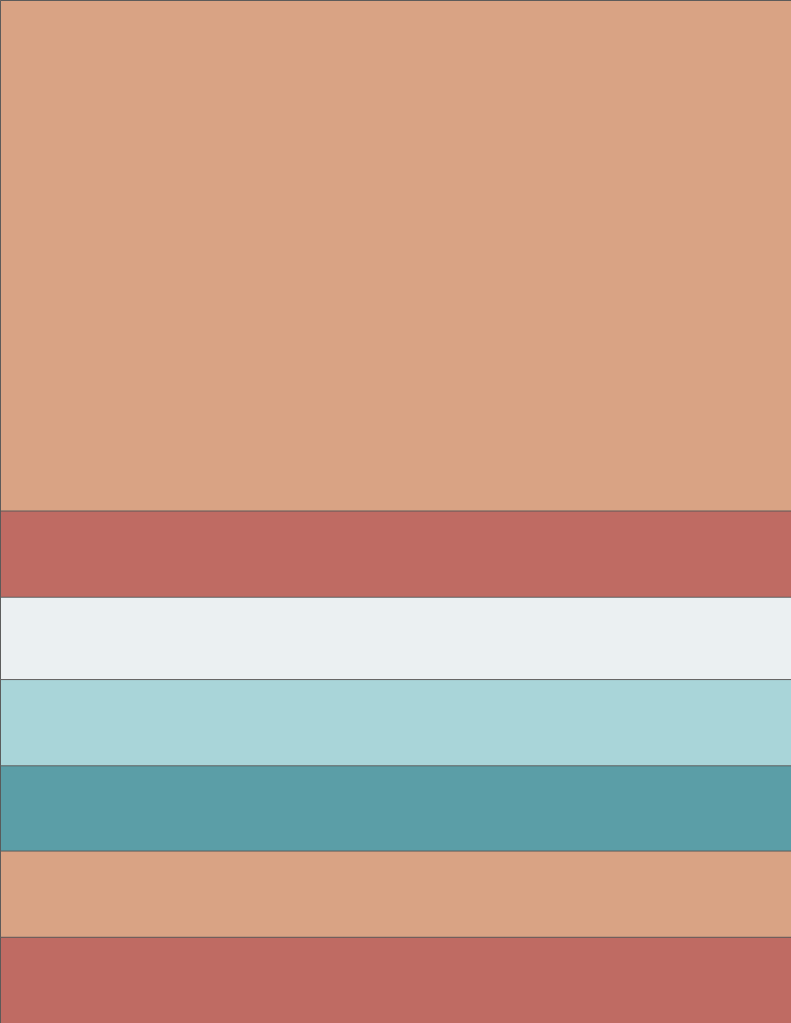
Using the shapes tool, you are going to draw rectangles for the tabs.

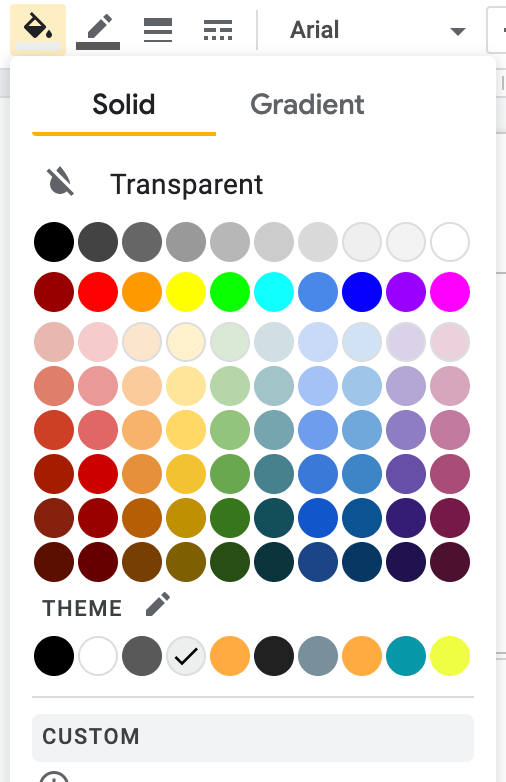
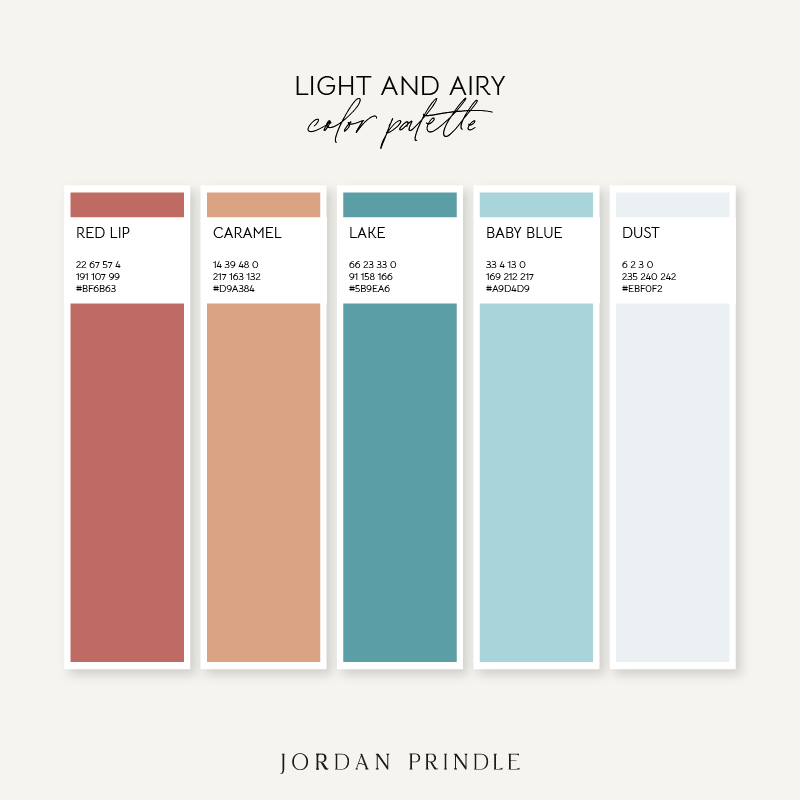
You can change the colors to match the color theme you are going for. You can look for color palettes and get the hexidecimal code OR you can intall a Chrome extension color picker like Color Zilla.

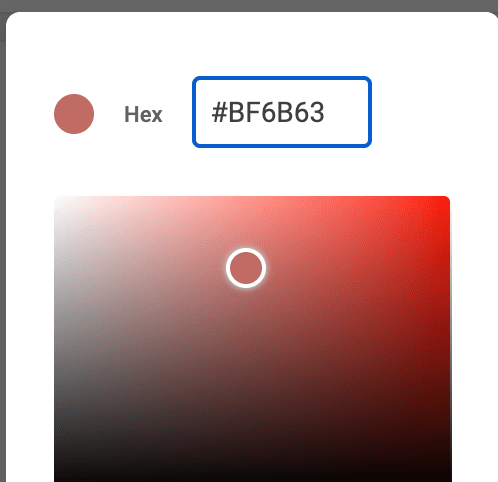
3. We are using a color palette that provides us with a hexidecimal code.

We are going to type this code into the custom color paint bucket tool. It’s at the bottom.

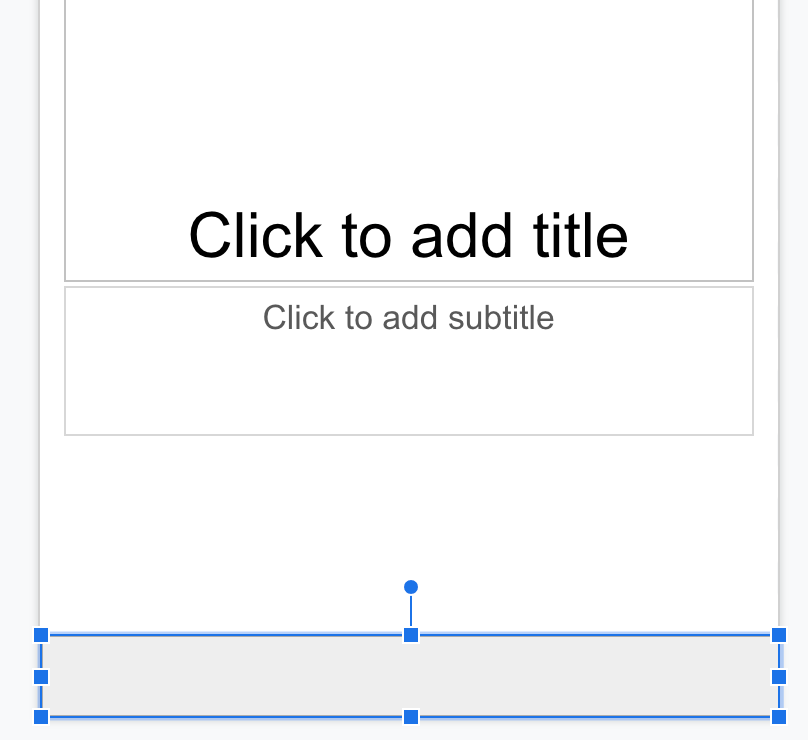
4. Repeat steps 1-3 until you have 6 tabs and the last box should cover the remaining space.

You can click on the tabs and go to format then format options and put a drop shadow on it if you want.

5. Now let’s put tabs or words on your flaps. I’ll put a tab, but you could also just put words. To make a tab, go back to the shapes menu and pick the second option, a rounded rectangle.

You can type in the rectangle, just double click on it. You can change your font by clicking on the box that says Arial.

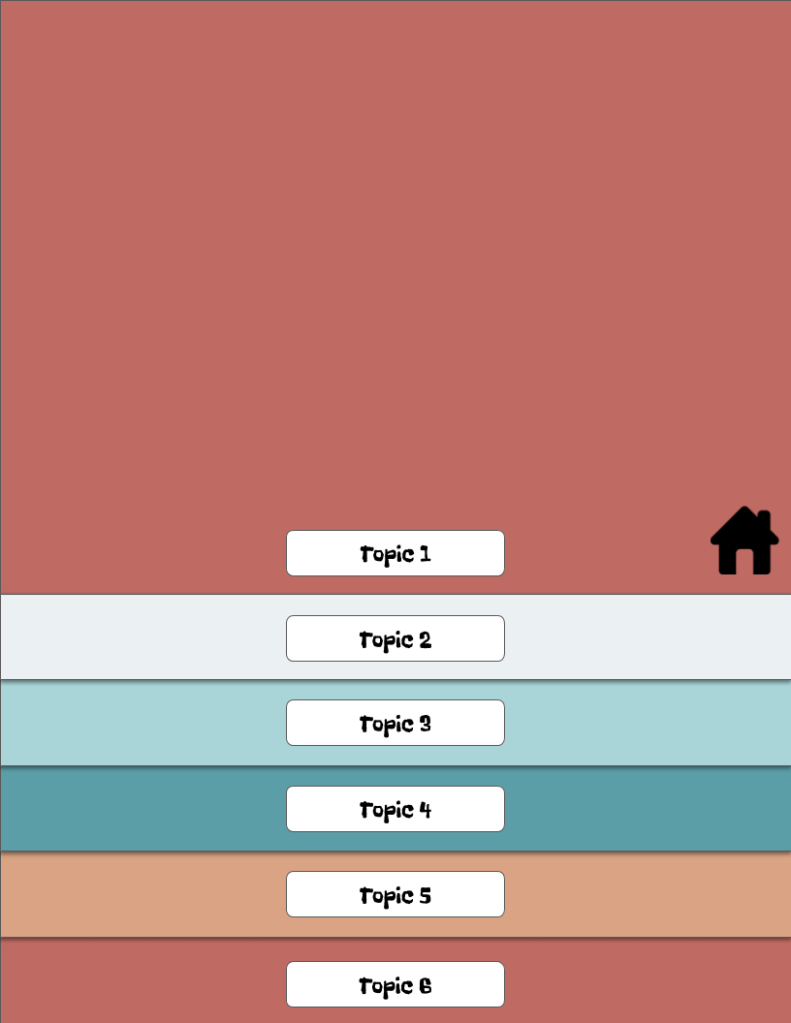
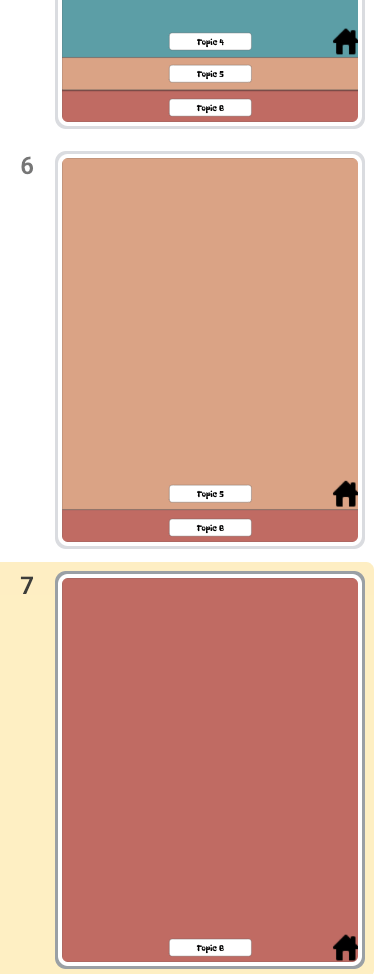
6. Now the magic happens. On the left, right click on the the slide and duplicate slide. You are going to delete the top big box. Then take the next box and drag it to the top, making it the big box.

You will also want to put a home icon or the word home on this slide. We will eventually link this so it goes back to the main slide.

7. Repeat step 6 until you have a slide for each tab.

8. Ok, I said step 6 was where the magic happens, but that’s not really true. This is where the REAL magic happens. We are going to link our slides so when you click on Tab 2 it takes you to Tab 2.

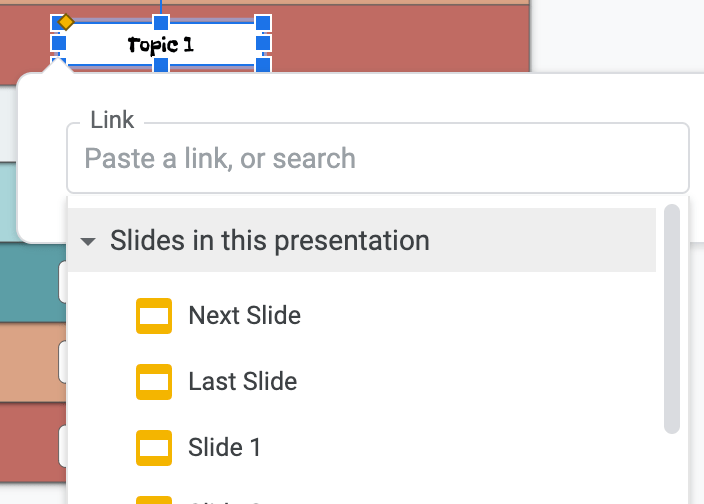
Go back to slide 1. Click on the Topic 1 (whatever you named this), then click the LINK button in the toolbar.

Click the slides in presentation arrow and select slide 2.

Repeat this with each tab, selecting that slide that you want the tab to go to.

You can do this for EVERY slide, OR you can copy all the linked tabs on the first slide and paste them onto the other slides.

You will also click the house (or word home) and link it back to slide 1.

Your template is ready to use. Type in your information OR have your students write on paper and insert a screen capture of their work. This is how I intend to use these.

The five topic template is also available on Slides Mania. Yay! It’s in the By Edu for Edu category. If you use this, let me know. I love to see what people create! You can shout out on Twitter @MandiTolenEDU and use #MMNS and #infinitelyteaching hashtags.

Head over to the Make Math Not Suck Blog to see a flipbook for Geometry in action.

Game Based Learning, Google Forms, Google Slides, Syllabus, Virtual Learning

Syllabus Activity

I have been a fan of John Meehan since he wrote a guest blog post on Ditch That Textbook. His book EdRenaline Rush is also amazing! He is a very helpful, kind, giving educator that you should definitely follow on Twitter.

This is an activity he posted last year and again this year. Many people have taken his idea and put a spin on it. Here is mine, along with some resources I use. Full credit goes to John. I’m so glad he is part of my PLN!!!

We will begin remotely this year, not because of Covid but because of an “air-quality” issue in our building, resulting in a complete gut our our building. All of our books, resources, supplies, decorations, etc. were thrown in the trash. 😦 That was 20 years of memories gone. The good news is when we return, our building will be safe for staff and students (well Covid safety measures will still be in place!!!).

Since I will start virtually, this activity is set up for remote students. John has his set up for in-person OR virtual.

Inside this activity I link to the following:

click to open

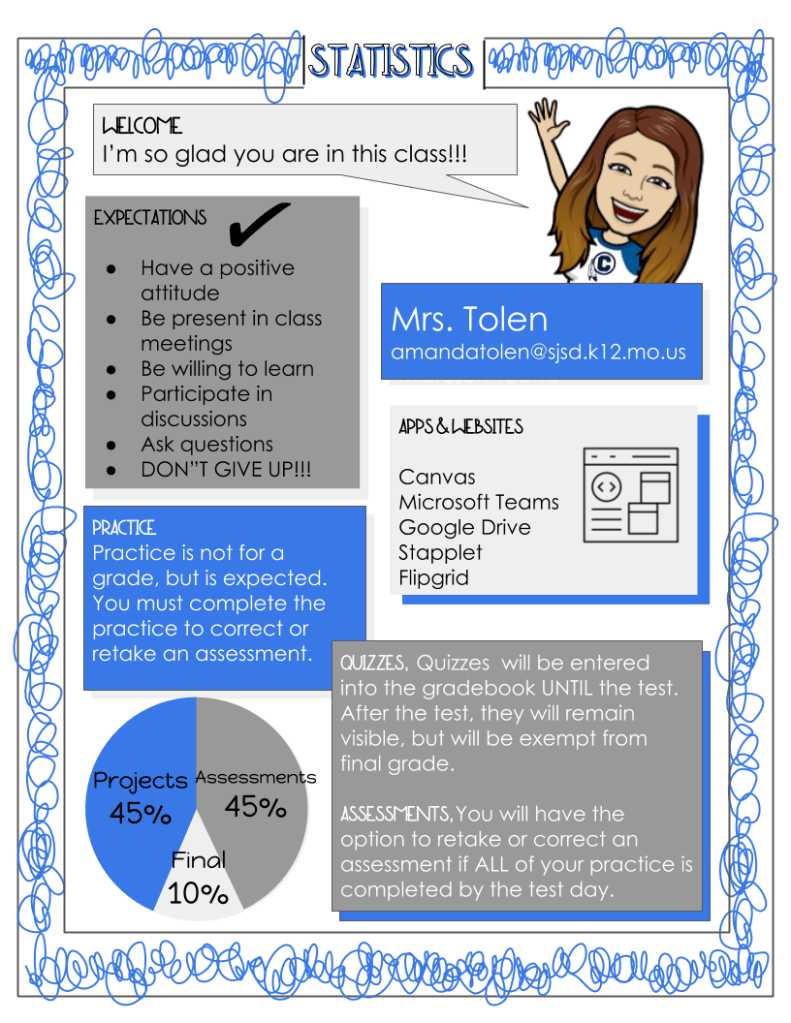
This template has additional colors to choose from.

click to open

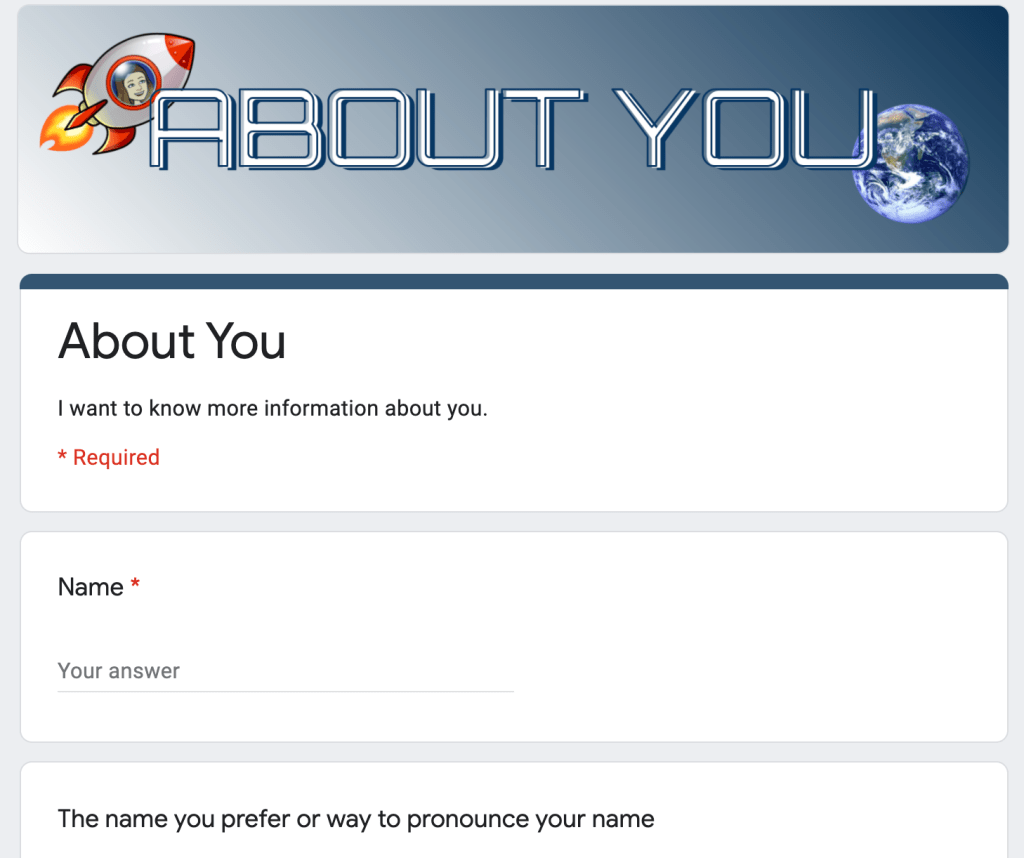
This is the same about you activity I’ve shared before. I made the header match our theme.

click to open

John has some of this type activity on Twitter if you want to give choices. Choices are good!

Click to open

This is a different syllabus template I’ve used in the past. You can also change the background color.

I know this seems like more work that just printing your syllabus, but imagine the excitement for your students to explore and learn about your class in a fun way and not just listen to you as you explain your syllabus.

If you make one of these, please tweet out to John @MeehanEDU and me @MandiTolenEDU. We would LOVE!!!!! to see them.

Distance Learning, EdPuzzle, Google Forms, Google Slides, Virtual Learning

Interactive Video (Ed-Puzzle Hack)

I LOVE EDPUZZLE! It’s a quick way to help students engage in a video they are watching. It’s also great for virtual learning. What I don’t love about EdPuzzle is the limitations in the free version. You only get 20 free videos. That will get me through, MAYBE, my first 2 units. You can refer people to EdPuzzle to get more, but who has time for that?

If your district will pay for the PRO version of EdPuzzle, DO IT! Most districts, however, are not in a financial situation to do this. So, I’ve created a HACK to have an EdPuzzle like experience. You can use it IN the classroom or during VIRTUAL learning.

Pros and Cons of my Hack–Pro, it’s free! Con, you can’t prevent students from moving ahead a slide to see the answer.

So here we go… I have two different approaches for you.

Google Slides

You can trim videos INSIDE Google Slides. Just insert your video. When you click on it (not the play button, but the video itself) you will get a Format Slide button right above the slide. Click on it and it will open a menu to the right. You can set the start and stop time for this video clip.

Put your question and answer box on the slide.

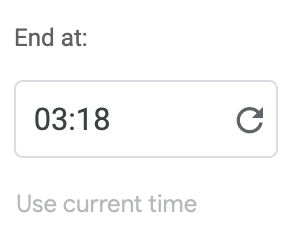
I duplicate the slide, and set my start time on the next slide exactly where I left off on this one before. The I watch the video and pause when I want to stop. You can click the button “use current time” to set it that point. Change your question for the new slide.

Keep going until you have each slide set for each question you want to ask.

This is the type of slide activity that you use NOT IN PRESENT MODE. You will also want to set it in Google Classroom to make a copy for each student. They will submit their completed Google Slide when they are finished.

Click here to get the template of my activity.

Slides + Forms

The drawback to JUST using the Google Slide is having to open each student to see their responses. I with we could clip videos in Google Forms, but we can’t, so here is my solution.

Create your Google Slide JUST LIKE I DID for OPTION 1. I just left the questions off.

Now, I’m going to create a Google Form to accept the answers.

If you have never used Tab Scissor and Tab Glue, you’ve been missing out. If you have your tabs open side by side and click Tab Scissors, it will open the tabs in two equal windows. When you are finished, click tab glue and it puts it back together.

This way students can see the video and question at the same time. You can also hit present to make it full size and when you hit ESC it goes back to the split screen.

To recap, if you need less than 20 videos, use EdPuzzle. If your district will pay for the Pro version, use EdPuzzle. If neither of those work for you, use this Hack.

Let me know if you use this. Shoutout on Twitter, Instagram, or Facebook at tag #MMNS and #infinitelyteaching!!!\

Happy Creating.

Bitmoji, Distance Learning, Google Forms, Google Sheets, Relationships

Get to Know Your Students

Relationships are so very important. If you want to connect with your students, you need to know your students and they need to know you and each other. I try to build a climate and culture in my classroom of family. I want it to be a safe space to learn, fail, share, and grow. Students will never feel comfortable doing this if they don’t know each other.

Here are a few activities I’ve done to help us get to know one another and create that family climate.

Google Form Survey

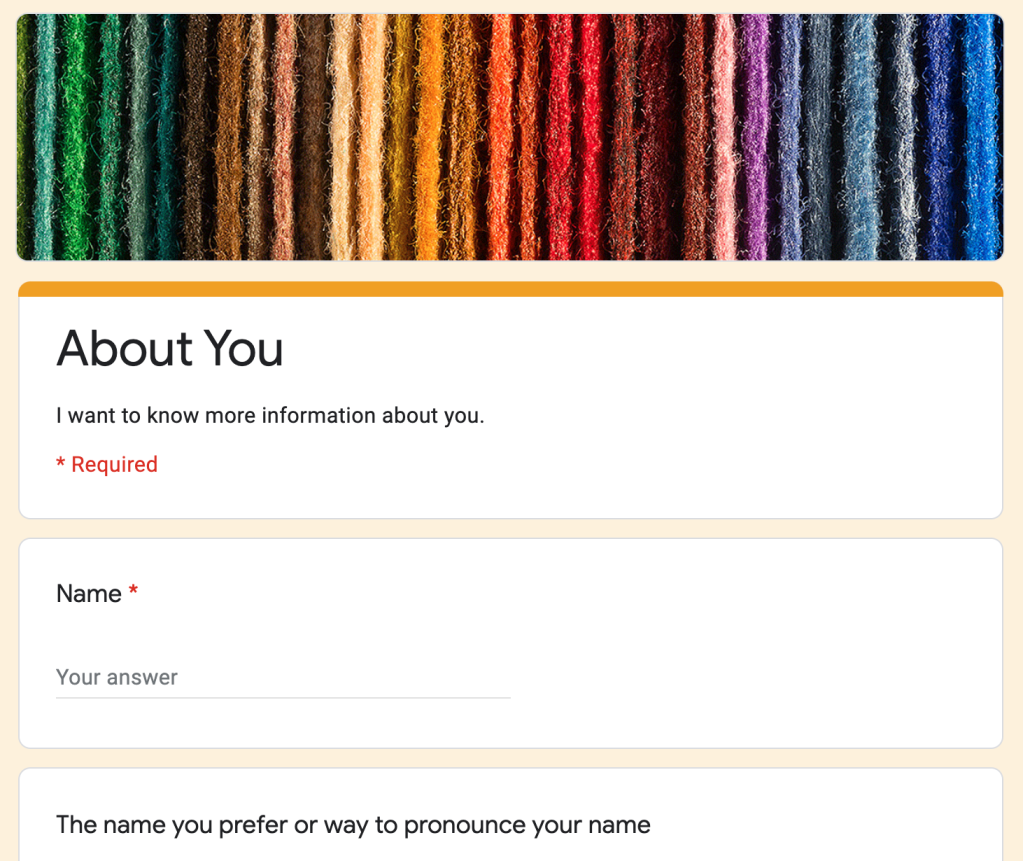
This document does more than gather information. I play a game at the of class periods that run a little short. See, if my students get done early, they pack up and migrate toward the door. This is problematic because so many students clustered around the door causes issues (and our administration has made it an expectation to NOT line up at the door). I will open the spreadsheet from this form and play guess who. Now let’s use some common sense here! I do ask students some personal information like internet access and food allergies. DO NOT USE THIS INFORMATION for guess who. I know you won’t but I’m putting it out there JUST in case. Students love to play this game and they get to know each other a little as we go. It also keeps them in their seat and engaged until the bell rings. This Google Form idea came from Jennifer Gonzalez. I found it in this blog post with many other great ideas including ice breakers. The guess who game idea came from a retired administrator I had during my specialist classes.

Collaborative Slides

I have been using this slide activity for quite a few years now. I like it because we learn about each other the very first day but I can also teach students how to use Google Slides, a tool we use OFTEN in my class. I assign it through Google Classroom and every student has access to the SAME document. This means you need to make a copy for each class. I forgot once and had to make a copy of the completed activity and delete the slides the students had added. Not a complete disaster but wasted time. I post this activity at the TOP of Google Classroom so students can access it any time. I also make sure any new students who join us later in the year complete it (same with the Google Form).

A NEW Collaborative Slide

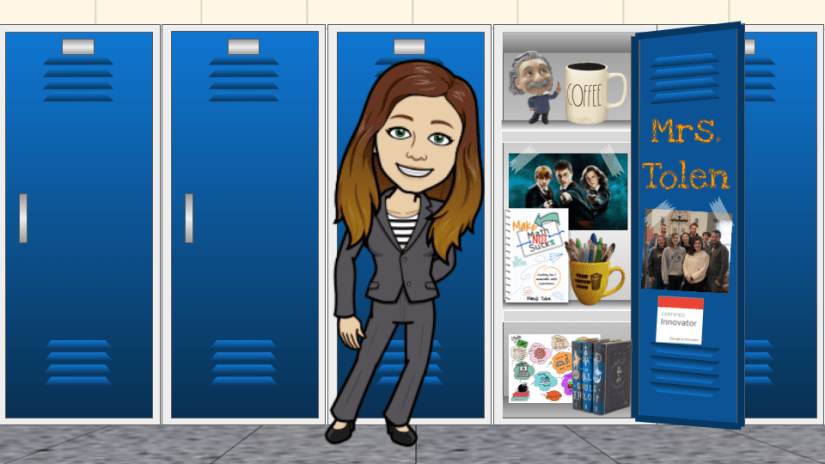
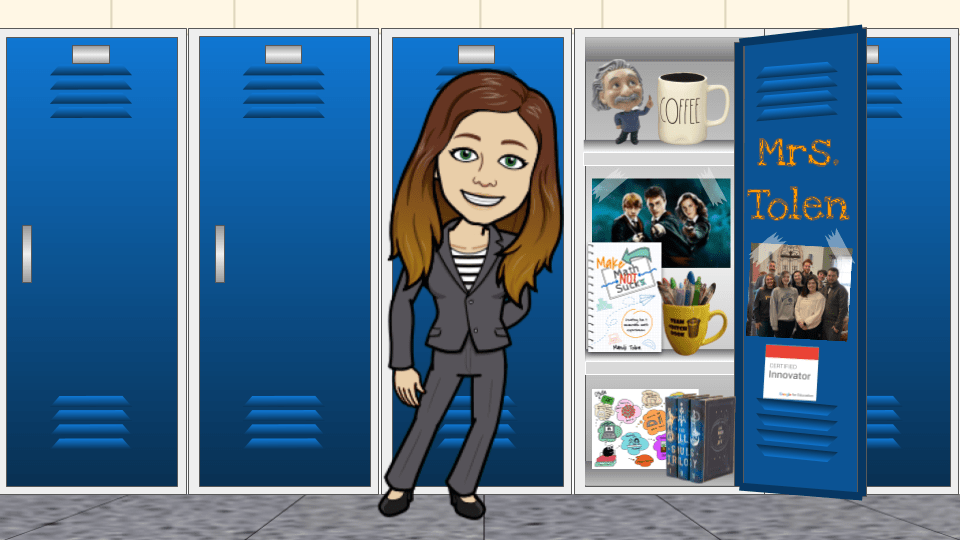
This is a NEW collaborative slide idea I saw on Twitter. Pamela Bradley (@4pambradley) shared on behalf of Lauren Vining. I LOVED IT, and not just because it had a Bitmoji (I give other options BTW). I wanted the lockers to be a little bigger and I wasn’t sure about the copyright of the locker image used so I made my own version in Google Slides. I plan to have the students use this activity just like I did the previous one. I will also get to introduce remove.bg and unscreen.com to remove the background from images and animated gifs. This way they can add a picture of themself if they want.

All of these activities (except or guess who, and maybe even that one via Meet or Zoom) could be used for virtual learning too.

Now, go build those relationships!

Game Based Learning, Google Slides, technology, Uncategorized

Memory Game with Google Slides (UPDATE)

Most of the content in this post is similar to the original post. You can view it here. I’ve learned a little since I created that first post so now the process is better and it’s possible to update the content once you make. If you don’t want to create your own from scratch, Matt Meyer (@54Mr_Meyer) has created templates that are available on Slides Mania.

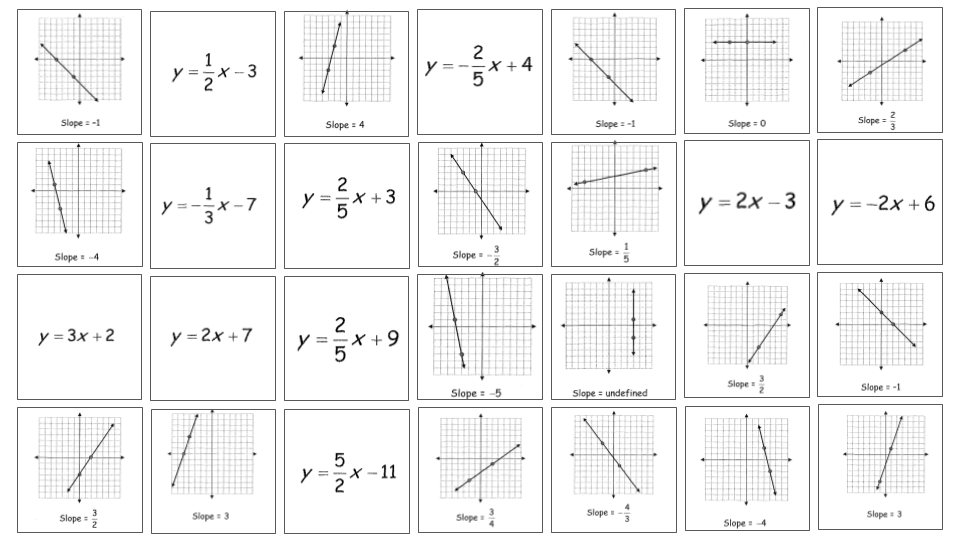
I REALLY dislike cutting out paper activities. This dislike is what prompted me to create my first activity (drag and drop Geometry Proofs) with technology. When my team found a fun Memory Game activity I CRINGED at the thought of cutting out all of those sets and then finding a place to store them.

memory.ngsversion.1438028331698.adapt.1900.1I went through a few attempts to create a memory game in Google Slides. I thought about linking pages but I needed to see two at a time. I wanted to remove one element “on click” but I could only get them to dissolve in a specific order. I settled on deleting the cards and it worked like a charm.

2017-10-01_17-42-07

I know, you are all wanting to create your own memory game now! You’re in luck, I have a quick tutorial for you!

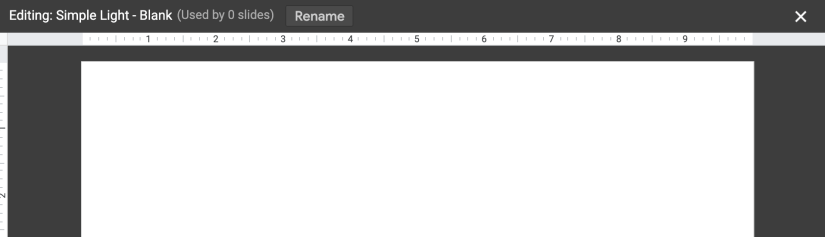
Memory NumbersWe are going to use the Master Slides to create our content (the back of the cards). This will prevent the movement of the content when players remove the top card. Using the Master Slides will also make editing possible should you wish to change this activity in the future. The way I suggested to do this before would not allow that. 

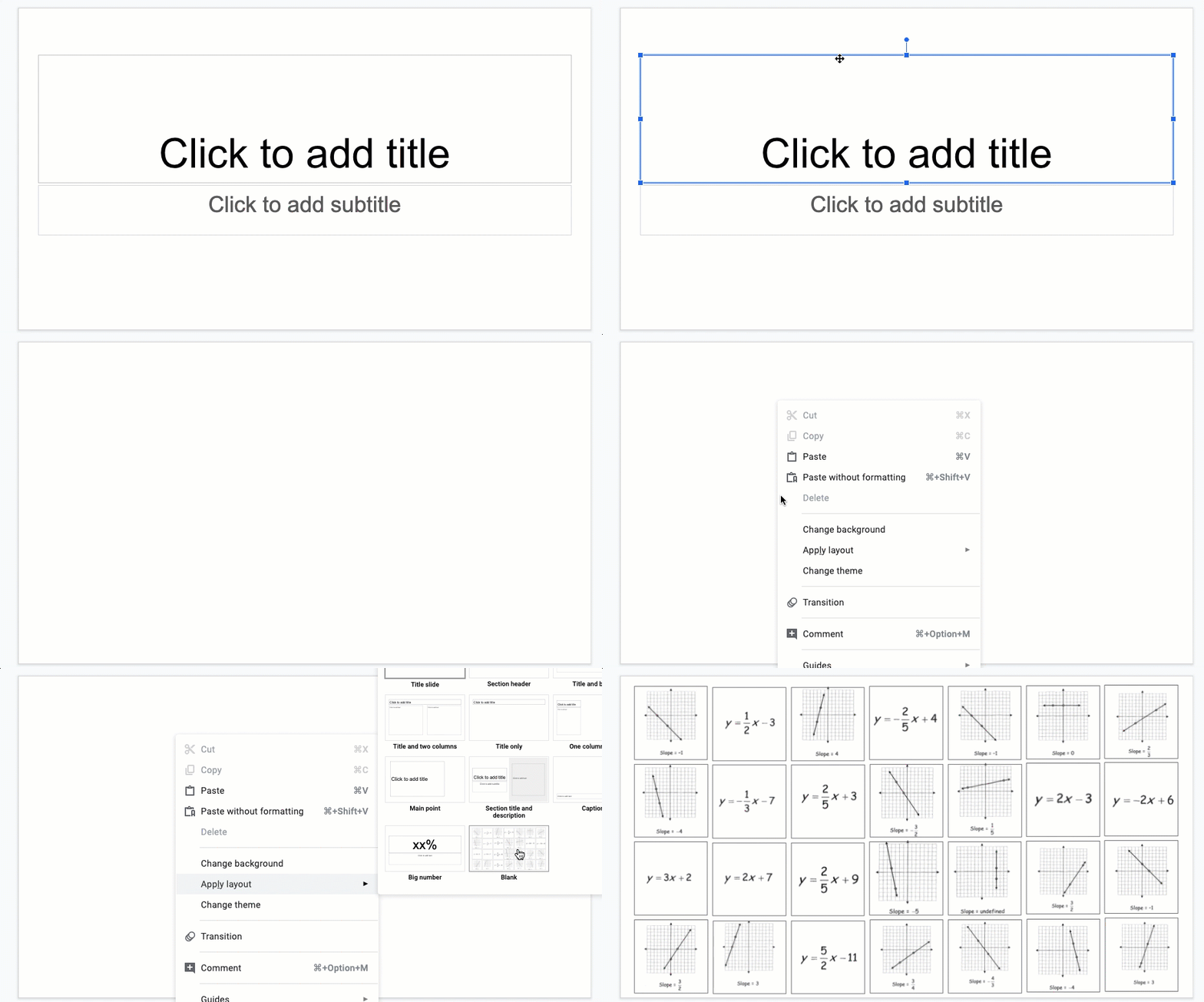
Here is how to access Master Slides. You will scroll to the bottom and use the blank slide.

I used the basic white background so it didn’t distract from game. Place all of the “back side” of the cards, the part with the content, evenly spaced on your Master Slide. I ended up putting boxes around mine to help me get them spaced. I love that Google Slides give you guide lines as you place your items.

Parallel & Perpendicular Memory Game (4)

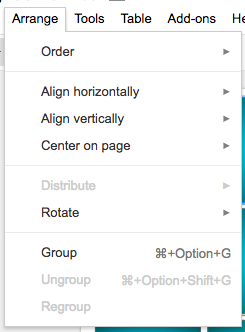
You can also use the arrange menu and select horizontal or vertical and align them perfectly.

Screen Shot 2017-10-01 at 5.18.26 PM.png

Memory Numbers (1)

Now we will close the Master Slides menu by clicking the x in the top right corner.

Once Master Slides closes, you should see your blank slide. You can right click (two finger click) on the blank slide and Apply Layout, selecting the layout with your content. You should now see your content you created earlier displayed in the slide.

Memory Numbers (2)We are ready to make the cards. I used the rectangle shape and held down the SHIFT key to make sure I had perfect squares. Screen Shot 2017-10-01 at 5.30.27 PM
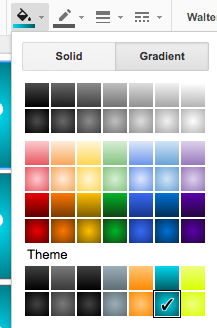
I used the gradient tool to select the background and put a ? on it just like the original memory game.

Screen Shot 2017-10-01 at 5.32.40 PM.pngOne suggestion from my students was to make this an image so the ? wasn’t editable. Sometimes when clicking on the square they got the ? instead.

You could make these cards in Google Drawing and download it as a PNG to use in the game.

You can copy and paste these and use the align tool again to get them close to where you want them. Then move them exactly where you need them.

Memory Numbers (3)Create the rules page. I’ve included the image of my rules page below. It explains how you would “flip” the cards over to play the game.
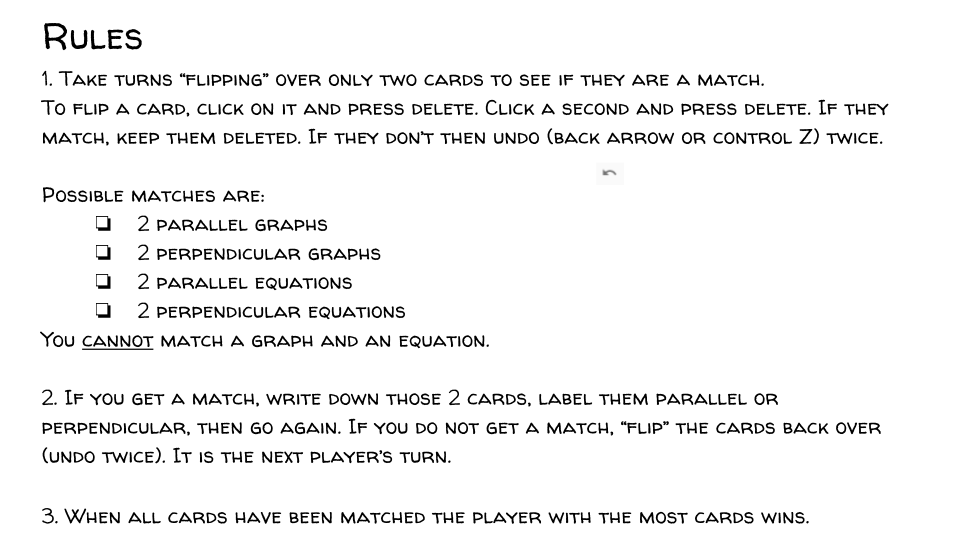

A question I get a lot is how to flip over the cards. You aren’t REALLY flipping over the cards, you are deleting the cards to reveal the content behind it. You delete 2 cards. If they are a match they remain deleted. If they are NOT a match, you undo twice using control Z or the UNDO arrow and the next person takes their turn.

Parallel & Perpendicular Memory Game (5)

Memory Numbers (4)Play the game!

2017-10-01_17-42-07

I sent this to my students through Google Classroom and said make a copy for each student. They enjoyed it and learned from the activity as well.

If you make a memory game, please share! I love to see how people use my ideas.

Tag me on Twitter @MandiTolenEDU and use the #infinitelyteaching. If you want to use Matt’s template, head over to SlidesMania and snag it.

Bitmoji, Digital Escape Rooms, Uncategorized

Bitmoji Scene

If you’ve been around me at all, you know my love for Bitmoji. There are many posts on my blog about using them in the classroom. One way I like to use my  Bitmoji is creating the main image in a digital escape room. You can see an example of it here and here.

During this Covid-19 virtual learning time, I have seen many teachers take this idea and remake their classroom. What a fun way to give convey information to your students. The process to make a virtual classroom is the same as the one I use to make an escape room image.

There are video tutorials available. Here are links to a few that are good.

tutorial 1     tutorial 2

and this website has compiled many posted Bitmoji classroom images for inspiration.

I learn better with step by step instructions and not a video so I thought I would put together a quick tutorial for you.

Before we begin, I want to emphasize the importance to using images with appropriate rights. Do not use images from a normal Google search. You might get images that are not free to use.  In Google Slides, or Drawing you can insert image and do a search. These images are free to use. You can also filter your images in a regular Google search.

Untitled drawing - 2020-05-13T183442.299

labeled for reuse: you are able to use these photos in any way that you’d like whether they be for commercial purposes such as your own website, or noncommercial purposes such as a school project.

reuse with modifications means everything above and you can remove the background, change colors, etc.

noncommercial reuse: you are able to reuse the photo as long as you are doing so in a place that doesn’t represent a commercial entity

Noncommerical reuse should give you the most options but if you plan to crop or change colors, choose with modification

Ok, now that the “Rules” have been covered, let’s make a scene.

Untitled drawing - 2019-09-02T101848.739Open Drawing, Slides, or PowerPoint

For Digital Escape Rooms, I build mine in Google Drawing, but you can also make them in Google Slides or PowerPoint. Google Drawing and Google Slides have the ability to embed them in a website or anything that accepts an embed code. PowerPoint does too if you save it to One Drive. You want something cloud based to keep your links active if you are using it to share information. Google Slides and PowerPoint will embed as an iframe but Google Drawing does not, so make sure you know what type of embed code you need. If you are using Google Sites to house your escape room, Google Drawing is what you want to use.

Untitled drawing - 2019-09-02T102527.467Find a wall and floor

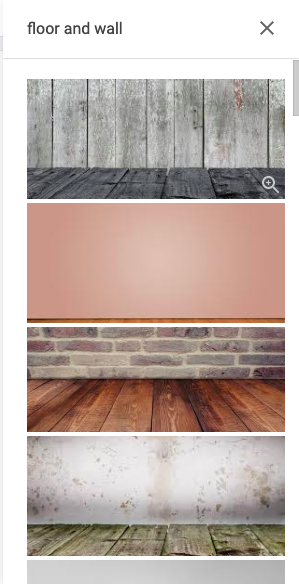
You can search for wall and floor and you will set options together. I will also just design my own sometimes. You can create a solid color flooring, for example gray for a concrete floor and create a pattern on the wall for wall paper. The first example below is a wall and floor created by me, including the baseboard. The second example is using separate wall and floor combinations found on the internet. For the one we make today I’m going to use a combo that I found online.

This link is a Wakelet of image resources. Sometimes a search just doesn’t get you what you want.

Circle Unit Escape Room      Qadrilateral Escape Room Image (1)

This was my search and the first few images that came up from insert – image in Google Drawing. I picked the second one and it wasn’t quite tall enough so I pasted in another and cropped out the floor. This is one of the reasons I like finding the wall and floor separate. You can make the wall and floor meet wherever you want.

Screen Shot 2020-05-13 at 8.12.45 PM Classroom Bitmoji   Classroom Bitmoji (1)

Untitled drawing - 2019-09-02T103223.198Add classroom elements and your Bitmoji

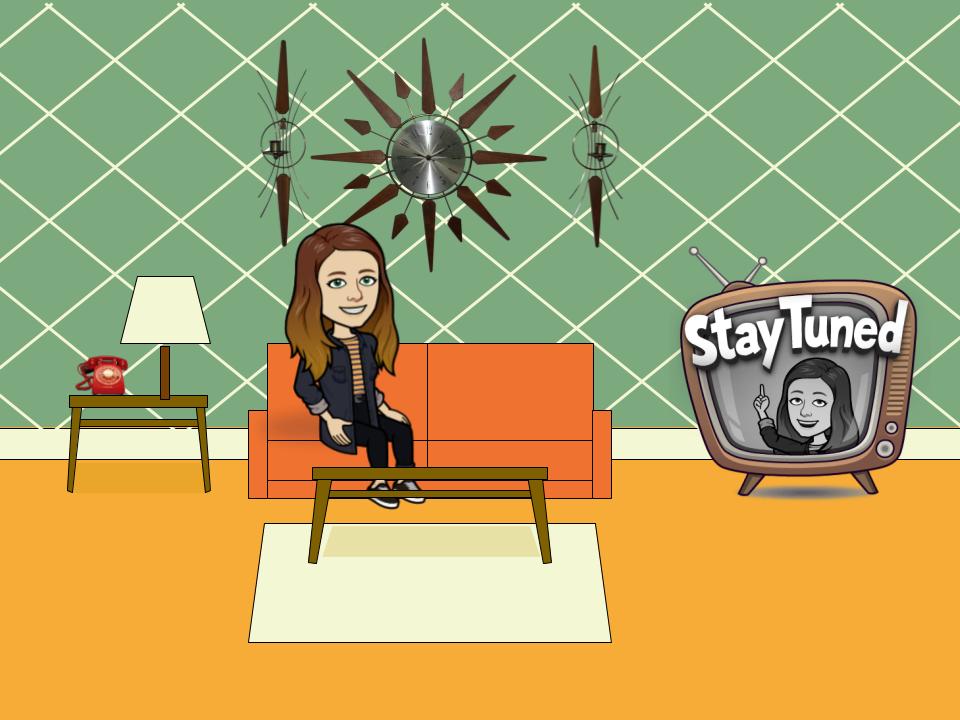
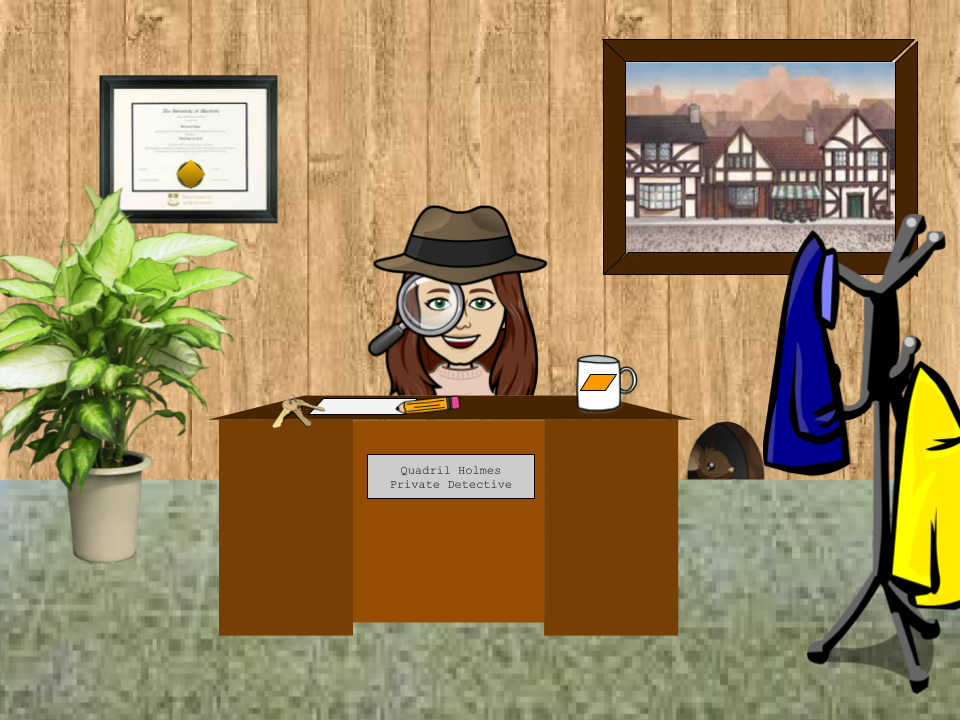
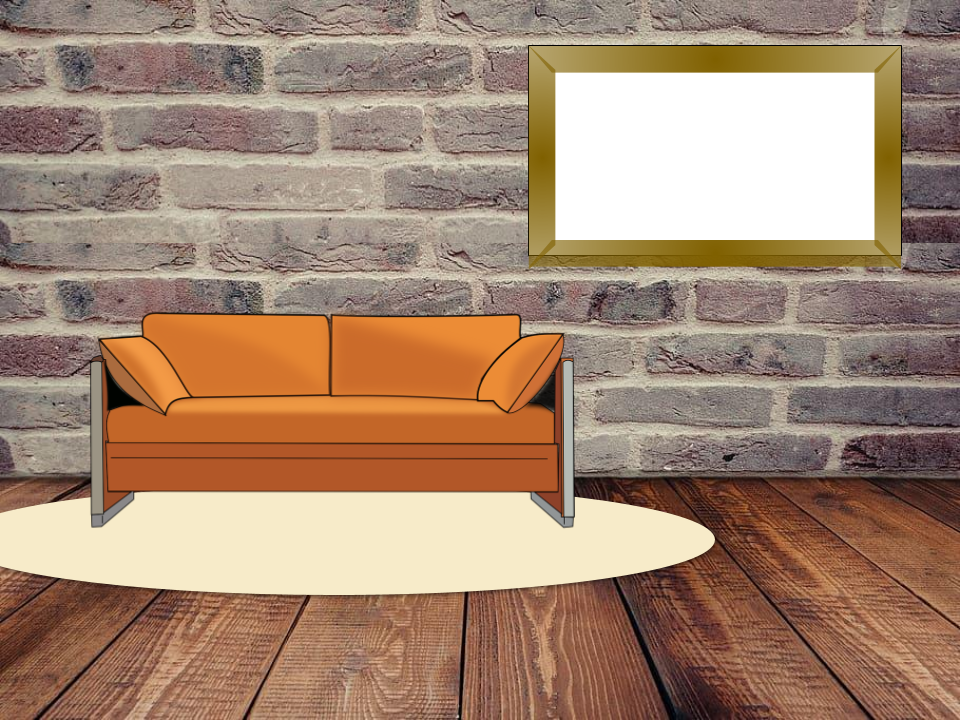
Now the fun begins. Using the same search methods or websites, start adding in furniture. Make sure you set the search to transparent or type transparent after the image to try to get transparent backgrounds. You can also make your own (Tutorial). In the two image in step 2, I made the sofa, rug, lamp, and shadows in image 1 and the desk in image 2. I used the shape tools in Google Drawing (Slides) to create them. You don’t have to do this but it is an option if you can’t find what you need.

Using the Bitmoji extension for Google Chrome will make adding your Bitmoji easier, just drag it from the extension to your drawing. If you don’t use Chrome or don’t want the extension, you can always email from the app on your phone. Saving the image from the email will retain the transparent background.

If you want to add in photos of pets, your own furniture, or other personal objects (the yellow mug with pens below), you can use remove.bg to remove the background. This also works for clipart, just make sure it has modification rights.

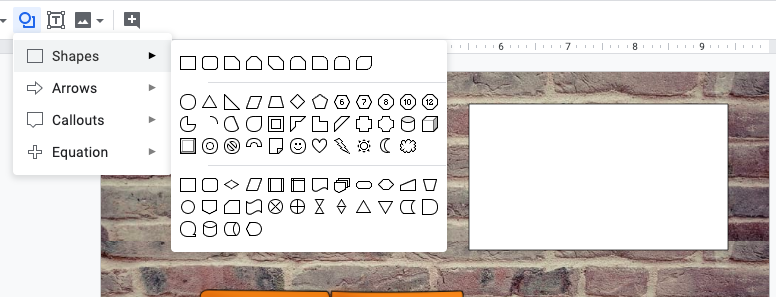
Making a whiteboard is easy. Draw a white rectangle and then using the trapezoid tool, create a frame. I use a gradient for the color. You can see a metal frame and a wooden frame below. The rug below is just an oval shape.

Screen Shot 2020-05-13 at 8.33.37 PM

Classroom Bitmoji (2)    Classroom Bitmoji (3)

Classroom Bitmoji (4)

Untitled drawing - 2019-09-02T104031.085Set Hotlinks

Once you have your image ready, you can set hotlinks on the image. If it is not a grouped imaged you can click the image and the link symbolScreen Shot 2020-05-14 at 11.33.09 AM and type in or paste the URL. If it is a grouped image, you need to put a transparent square or circle using the shape tool and link to that.

Untitled drawing - 2019-09-02T111647.929Use your image

If you are using your image for a digital escape room and you are putting it in Google Sites, just insert the drawing inside Sites.

If you are using Sway or a website, you need publish it (Slides or PowerPoint only) to the web (see Sway tutorial) and get the embed code.

You can also download the image as a .jpg or .png and use it as just an image. You will lose your hotlinks but it’s still super cute for newsletters and Google Classroom headers (set size to 1000 x 250 px before you begin)

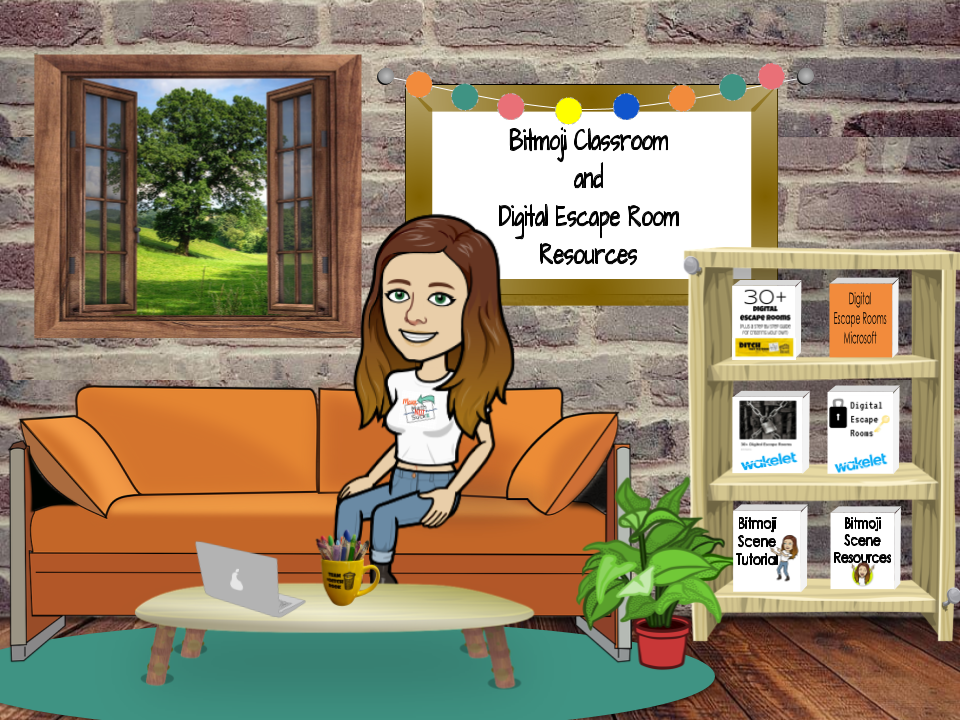
Here is my completed image. The books on the shelf are are clickable links.

Wakelet of Resources      Tutorial to Create Your Own Images


Bitmoji, Google Drawing

Create Custom Items in Google Drawing

Let me set the stage: You are creating a custom Bitmoji classroom scene (Tutorial here) or digital escape room scene and you find the PERFECT image, but SAD, it’s not free to use. What do you do? Well, you don’t illegally use it. PLEASE DON’T DO THAT! Instead, you make your own in Google Drawing.

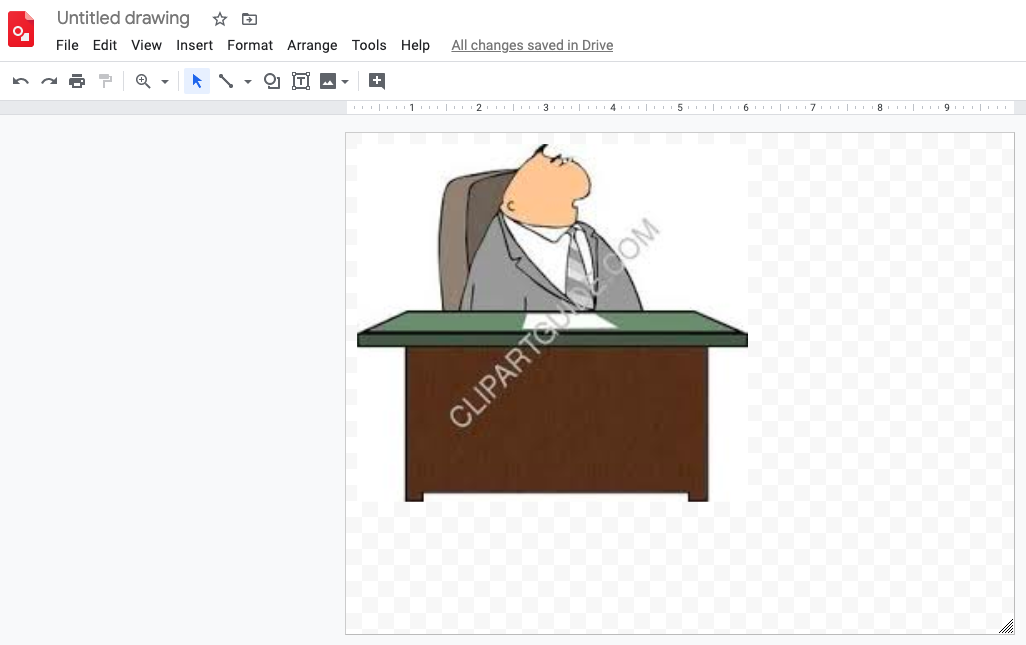
Here is an image I found that is clearly not free because it has a watermark. But I really like the way this desk is situated and I want one like it.

Untitled drawing - 2020-05-14T123017.398


Untitled drawing - 2020-05-14T123451.486Open Drawing and Paste in Clipart

In a new Google Drawing file, paste in the not free to use clipart. Don’t worry, we will delete it later.

Screen Shot 2020-05-14 at 12.36.22 PM

Bitmoji StepsUse Shape Tools to Create Image

Bitmoji Steps (2)Delete, Shrink Canvas, Save

Now that your image is complete, delete the clipart.

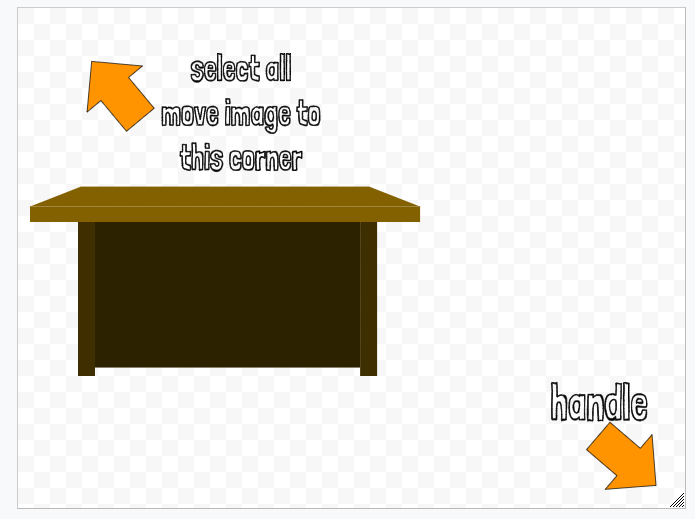
Select all by using command (or control) A or click and drag your cursor from top left top bottom right. Move your image to the upper left corner.

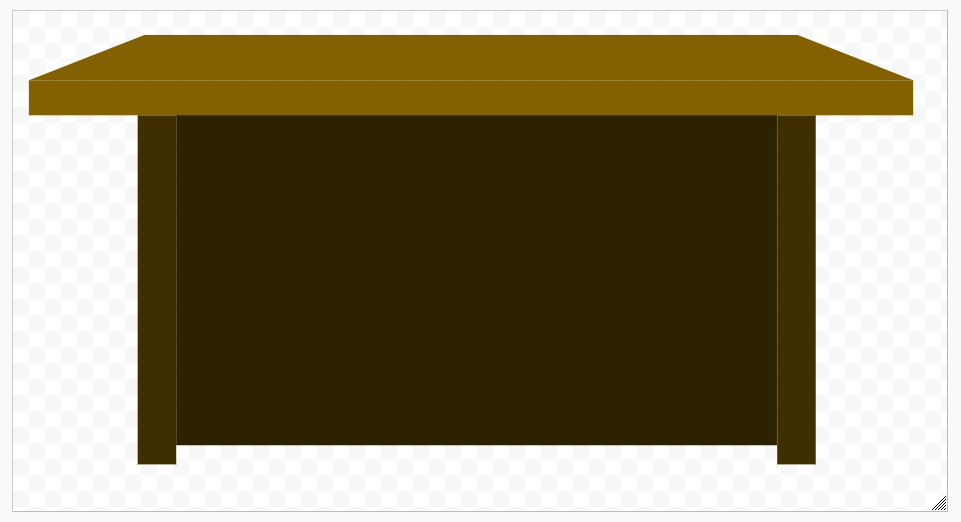
Drag the handle in the bottom right corner and shrink your canvas to fit your image.

Screen Shot 2020-05-14 at 1.34.03 PM Screen Shot 2020-05-14 at 1.35.31 PM
Now you can go to file and download as a .png to keep the background transparent or .jpg if you want the background to be white. If you plan to use this image in your custom scene then you want a transparent background.

Here are a few images I have drawn using Google Drawing. You can use the polyline tool or the curve tool, both under the line tool menu and make custom shapes.

This slideshow requires JavaScript.

Have fun and please share if you create your own custom images.

Digital Escape Rooms, Google Forms, Google Slides, Microsoft, PowerPoint, Sway

Digital Escape Rooms with Microsoft

If you’ve been around the blog for awhile, or follow me on Twitter, you know my love for all things Google. When I created my tutorial for Digital Escape Rooms (posted on Ditch That Textbook) it was using all Google apps.

I know some fellow educators out there are not in a Google school. Other educators are Google schools but they can’t use Google Forms.  Never fear, here is a tutorial to create a digital escape room using Microsoft Sway, PowerPoint (or Google Slides) and Forms.

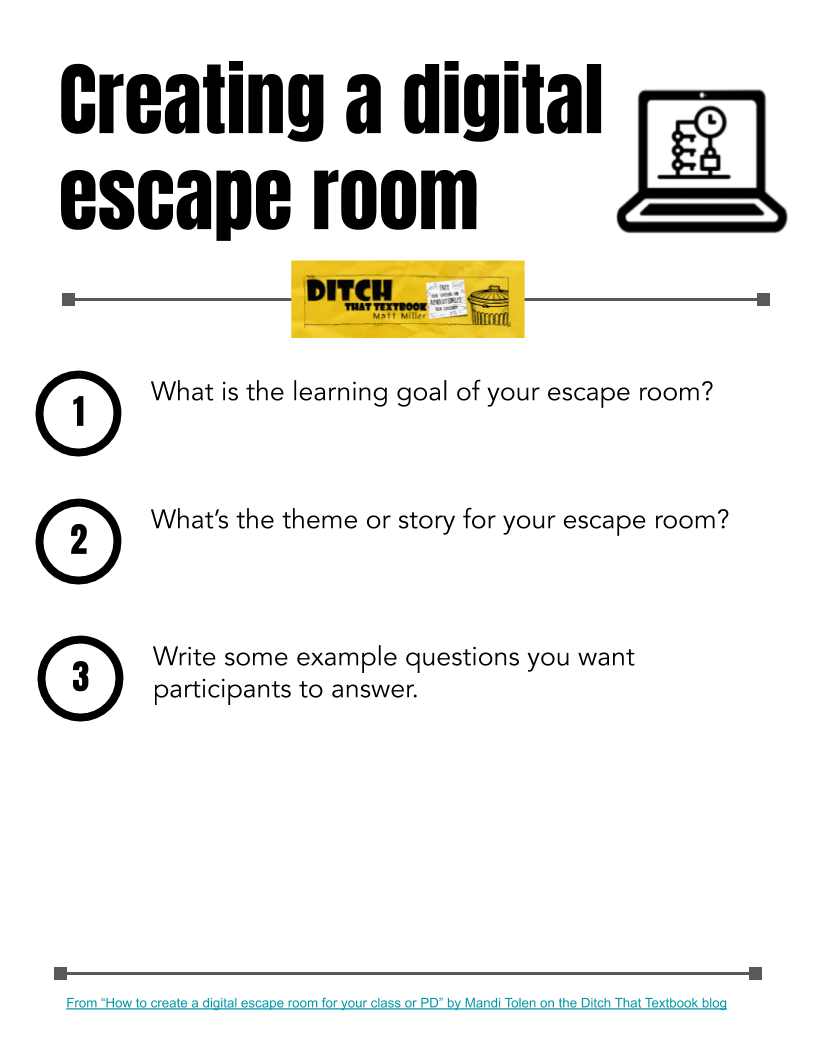
The process is the same except for the location of the image and the last step and you can even use Matt’s planning template.

Digital Escape Room Infographic - Microsoft  Matt's Creating a digital escape room template

1. Write your prompt

You need a good story to hook the audience. When you go to a physical escape room, they set up the situation with a story or information at the beginning. The purpose of this Halloween themed digital escape room was to share some tech ideas with my staff in a fun way.

So I wrote an introduction to tell my audience what was happening:

“It’s a blast from the past! But when I blasted from the future to my 50’s living room, I lost my copy of Ditch That Textbook. Click on the clues in the room to help me find my signed and treasured copy.”

2. Create your clues

Determine how many and what kind (number, word, etc.) of clues you want. I want this escape room to be a fun activity for teachers to do as stress relief at the end of school and maybe gain some inspiration for next school year. During this step, I also created all of my clues. Some are in PowerPoint, Docs, Excel, Jigsaw Planet, etc. I keep all of these in a folder in One Drive so everything is together.

Here are the clues I used for my digital escape room:
  • Microsoft Training Site through a Sway page – CLUE: VV (1)V (2)which translates to 503 with the pigeon number cypher.
  • Editable PDF hack in Google Slide – CLUE: EDIT with alphabet cypher translates to 761122
  • Choice menus from Kasey Bell – launched from an excel sheet – CLUE: BUFFET
  • Using animated Bitmoji’s from Snapchat – launched from a cypher in Docs – CLUE: DANCE

Here is a Wakelet collection with even more clue making resources.

3. Create your image(s)

I almost always have an interactive image that I create in Google Drawing. But to embed in Sway, you have to use used something with an iframe embed code. I know, what the heck is that. No worries, I’ll walk you through it later. In the mean time, use PowerPoint (or Google Slides) to create your image. We will embed this in our Sway at the end and the links or “hotspots” will remain active.

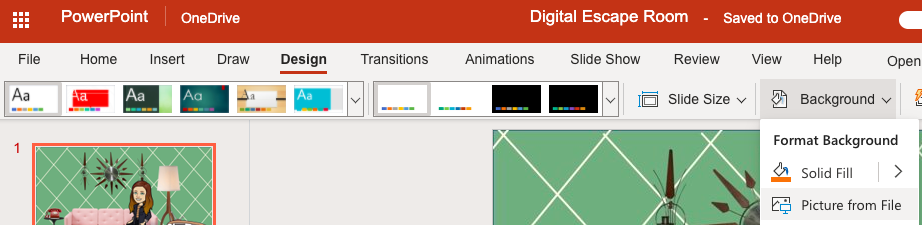
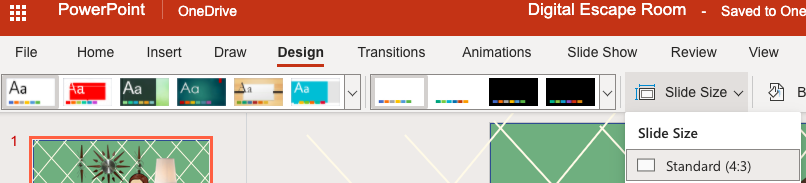
Open a new PowerPoint (or Google Slide) and start creating your scene. I changed by screen size to 4:3. You do this under the design tab, then select slide size.

Screen Shot 2020-05-08 at 2.20.49 PM

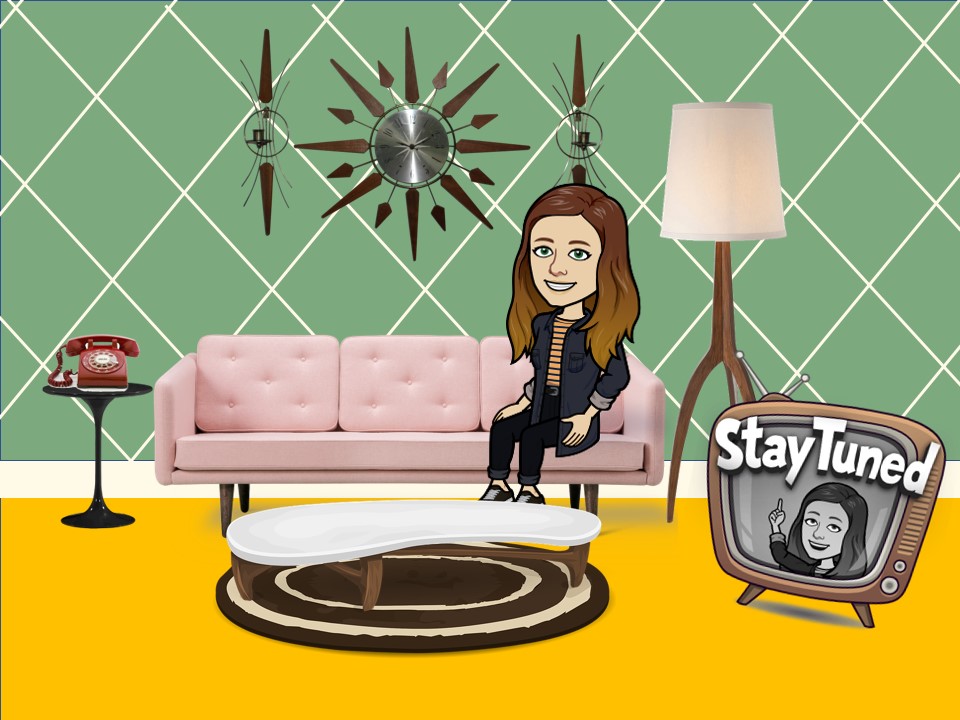
It can be as easy as a single image (the reindeer in this Reindeer Games digital escape room), or as fancy as a full scene (like the image below).

Slide1

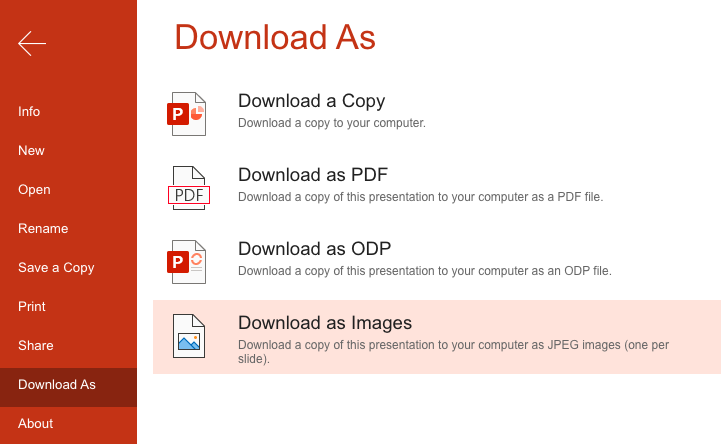
Once your image is created, you may want to download this and set it as your background. This prevents you from accidentally moving one of your components while setting your hotspots. To download the image, click on the File, then download as images. This will make a zip file. You will have to unzip it (double click usually) to use it. Once you have the image, then click on the Design tab and choose Background, picture from file. Navigate to you photo and upload it. Don’t forget to select all and delete everything from your page (it’s scary, I know, but you have an undo button). You will see your image set as the background.

Screen Shot 2020-05-08 at 2.45.29 PMScreen Shot 2020-05-08 at 2.47.31 PM

After your image is created and set as your background, you need to link your clues to each object. I have 5 clues, so I linked it to the clock, phone, tv, coffee table, and pink sofa.

You can make anything you added to your image clickable as a link! PowerPoint 365 is a little different than Google Slides. You can use a shape or textbox for this next step. If you use a shape, set it to no fill and no outline. If using a textbox, delete the text. Double click on the shape or click on the textbox and go to the insert tab and choose link. Screen Shot 2020-05-08 at 2.56.22 PMType or paste the URL for the clue you are linking. To prevent the text from showing I use a period and change it to the color of the object it’s over.  If you are using anything cloud based, make sure share settings are set for anyone to be able to view.

If you are using the desktop version of PowerPoint, you can just right-click on the shape you drew and add your link. It’s much easier on the desktop version. You will have to your PowerPoint to the One Drive cloud to get the embed link.

Some breakouts may have more than one image or page. In my trianglesonly.com breakout game, I had multiple pages on the top tab to replicate a dating site, so I repeated the process for each image I created.

4. Create your locks

If all of your clues are numbers and you have the pro version of Microsoft forms will can create your locks in Microsoft. You can create create a cypher for each clue to change it from letters to numbers. I show some examples in this escape room. You can make your Cypher images in any image editing program. You can also use PowerPoint and download the files as .jpg or .png.

I don’t have the pro version of Microsoft Forms so I’m using Google Forms. Create a new Google Form (I keep everything for each escape room in one folder). You want to use response validation (check out this video for a walkthrough on how to add it) so they have to type in the correct clue. You also want to make the question required.

Adding response validation to Google forms.

For number locks, I use the number is equal to setting then type in the number you want. You can also type in a custom response if they get it wrong. For a number, I usually just use “try again”.

Example error message text for digital escape room locks in Google Forms.

For letter locks, you will select text contains. Forms are case sensitive so my clue usually directs them to capital or lowercase letters.

Example help message text for digital escape room locks in Google Forms.

Continue this process until you have all of your clues entered.

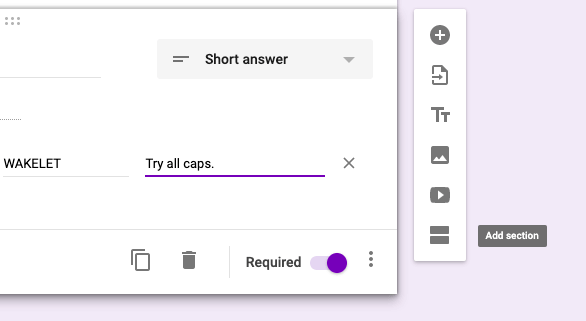
I like to include a special message or image once the person “escapes”. To do this, create a new section in your Google Form.

Digital escape room locks: add a section to your Google form.

On this new page, you can post a message or an image congratulating them on escaping.

Digital escape room locks: add an image or message to Google Forms.


5. Create your Sway

In my opinion, this is the most exciting part of the process. This is when everything you have created comes together as an escape room.

Got to sway.com and start new. A title card will always be the first card offered. Title your Sway and add any images you wish. There is a design tab if you want to play around.

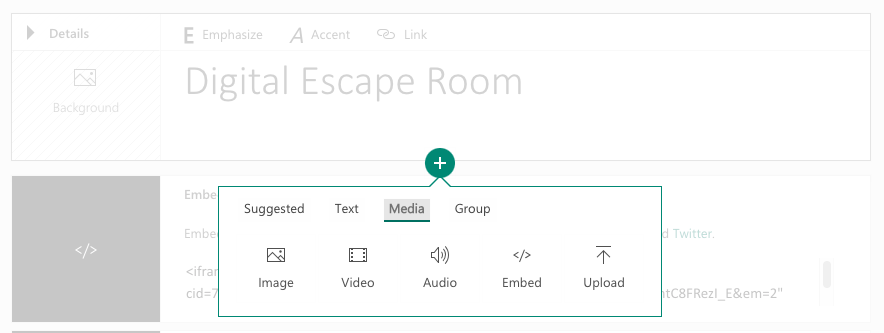
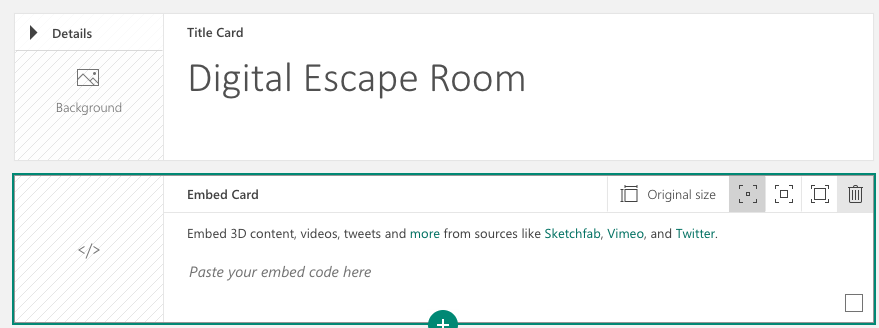
Now add you image (or images). Click the plus sign, then the media tab, and then embed.

Screen Shot 2020-05-08 at 3.08.42 PM

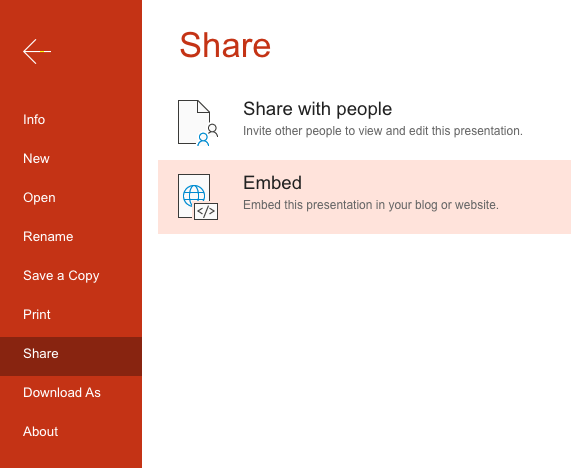
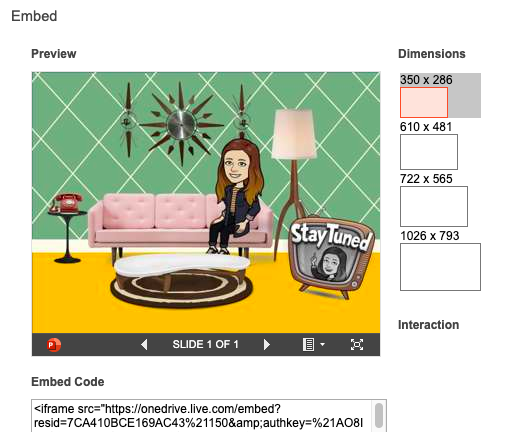
Now let’s go get our embed code. Your image is in PowerPoint (Google Slides instructions will be below). In PowerPoint, click file, share, and embed. Copy the embed code.

Screen Shot 2020-05-08 at 3.10.30 PM Screen Shot 2020-05-08 at 3.11.47 PM

Head back over to sway and paste the embed code in the card.

Screen Shot 2020-05-08 at 3.13.03 PM

Google slides will need to be published to obtain the embed code. Go to File – Publish to Web. When you click publish, an embed code will be available.

Now let’s insert our Form. Whether you use Microsoft or Google, the process is very similar. Click the + in Sway and select Embed again.

Go to your Form. Click Send then the <> tab to get the embed code. Paste this code in the Sway card.

Now you are ready to preview your Digital Escape Room. Click the play button in the top right corner. How does it look?

When you are ready to share with others, you use the share button. You can copy a link or create a QR code.

Whew! You made it to the end. Now you are ready to go create your own Digital Escape Room with Sway.

You can try out the Digital Escape Room created during this post with the link below.

https://sway.office.com/s/2Hvb5Qm4ehy2Mn54/embed


Google Drawing, technology, Tutorial

Google Drawing Tutorial

I LOVE GOOGLE DRAWING!!! If you’ve been around here for awhile, you know how much I use Drawing or Drawing features in slides. That’s right, Google Slides uses many of the same features as Google Drawing. WIN!

Google Drawing will download as a transparent .PNG image. It’s vector based, so if you make a large image it will scale without much degradation of the image. I once create panels for a tri-fold display board, printed them and glued them to the board. The images were crisp and looked professional.Google Drawing examples

This is a little tutorial to help you get started with Google Drawing.

Come back soon and we do something FUN with Google Drawing and Google Slides.